It’s time to stop mistreating your SSD. Abusing it happens more easily than you’d think, and pushing it too far will catch up with you.
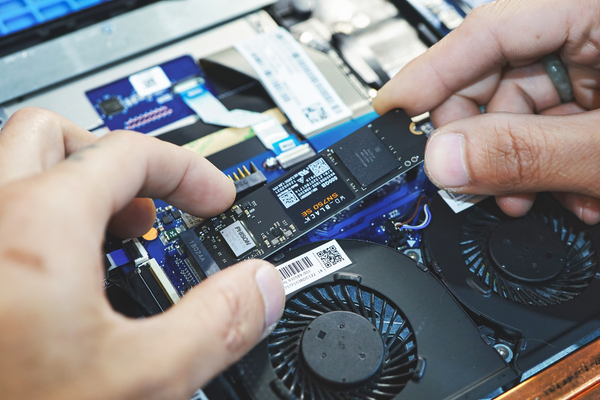
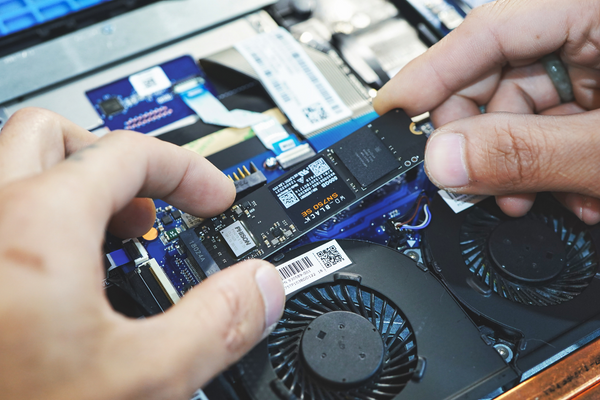
An SSD, or solid-state drive, is the storage inside your computer that holds your operating system, apps, games, and files. Unlike an older hard drive, it stores everything on flash memory chips with no moving parts, which is why it’s so much faster. Every time you boot up, launch a game, or save a file, your SSD is doing the work behind the scenes.
SSD problems range from minor annoyances to issues that leave your PC nearly unusable. Here’s how you might be neglecting your drive, and what to do about it.
Your SSD is durable, but it isn’t immortal
NAND flash has a finite number of program and erase cycles, so your drive wears down a little every time you write data to it. Most people replace their SSD long before it reaches the end of its lifespan, and even then, failure rarely happens instantly. Mistreatment can shorten that timeline considerably.
Like any PC component, your SSD can fail for reasons outside your control. Still, avoiding the habits below gives your drive a better chance of running well for years to come.
Don’t fill your SSD to capacity
Your SSD performs best when it isn’t pushed to its limit. As it fills up, you’ll notice your PC’s gaming and overall performance take a hit.
Early warning signs of a drive running out of breathing room include texture pop-in (which can also point to a RAM issue), sluggish loading screens, and trouble loading game worlds or environmental detail.
Some dismiss this as a myth, but leading storage brands back it up. Most recommend keeping your SSD under 80% capacity for the best performance. The fix is simple: add a second drive for storage, or uninstall games you rarely play. Clearing space for this article freed up 400GB.
Keep your PC’s temperature under control
When your PC overheats, every component suffers, including your SSD. NVMe drives, especially fast PCIe Gen 4 and Gen 5 models, can run extremely hot under load. To protect itself, your SSD’s controller throttles performance once temperatures cross a certain threshold, cutting speeds sharply.
You don’t need to hit the max rated temperature for damage to occur. Running hot for extended periods still adds wear over time.
Beyond keeping solid airflow in your case with enough intake and exhaust fans and proper CPU cooling, you may want a dedicated heatsink for your SSD. Many high-performance drives already include one. If yours doesn’t, check your motherboard: many include an M.2 slot with a built-in heatsink, an ideal spot for your fastest drive. Reserve the slot without one for secondary storage, or buy a separate heatsink after confirming compatibility.
Don’t overload your gaming SSD with everything else
If your gaming SSD is also handling your operating system, files, and every other application, you’ll eventually run into performance drops. It isn’t only about filling the drive quickly, it’s about asking it to juggle too many operations at once. When everything lives on a single drive, your game competes for resources with background processes, files, and apps like Discord or your browser.
From a hardware standpoint, your SSD doesn’t prioritize anything. It processes a queue of read and write requests, and the more requests pile up, the slower each one gets handled.
This matters less on fast PCIe Gen 4 or Gen 5 drives, which juggle multiple workloads well. Even so, spreading your heaviest tasks across separate drives helps prevent slowdowns and protects you from losing everything if one drive fails. Ideally, keep your operating system on one SSD and your resource-heavy tasks on another.
Make sure you have enough RAM
Your PC relies heavily on RAM for speed. When you don’t have enough to support gaming, streaming, or multitasking, your system falls back on the pagefile, essentially backup memory stored on your SSD.
When physical RAM runs short, your PC offloads data to the SSD to keep things running. RAM is volatile and built for speed, while your SSD is built for storage, so leaning on it as substitute memory slows everything down. This happens more often than you’d expect. Some games are RAM-hungry, and heavily modded titles like Minecraft or The Sims can strain even 32GB.
Excessive paging wears on both your PC’s performance and your SSD’s lifespan. Make sure you have enough RAM to avoid forcing your drive to compensate. If a RAM upgrade isn’t an option, cut back on multitasking and close background apps when your system struggles.
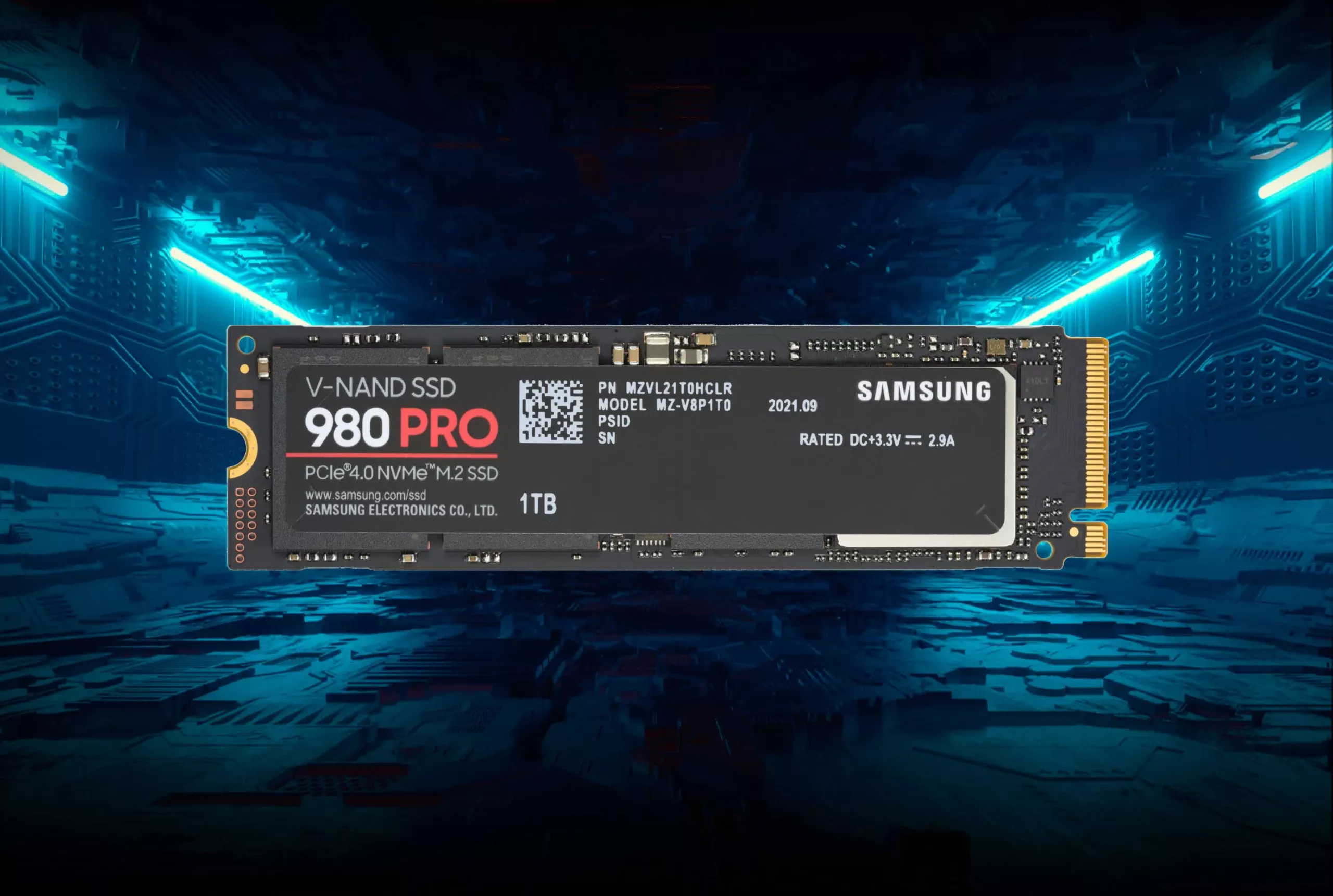
Small SSD glitches can lead to bigger problems
SSD issues range from catastrophic failures to minor quirks, and you might not immediately connect a problem back to your drive. Crashes or extremely slow boot times are usually easy to trace to the SSD. Subtler symptoms, like texture pop-in or sluggish loading screens, could come from almost anywhere, including the game itself.
Treat your SSD well, and it will return the favor. Avoiding the habits above is a solid start toward keeping your drive healthy and your gaming PC running smoothly for years.